AD

顯示具有 Python 標籤的文章。 顯示所有文章

2023-02-01

[Leetcode] 217. Contains Duplicate

紀錄一下自己一看到題目時的做法~


英文題目  https://leetcode.com/problems/contains-duplicate/

Given an integer array nums, return true if any value appears at least twice in the array, and return false if every element is distinct. 


Example 1:

Input: nums = [1,2,3,1]

Output: true


Example 2:

Input: nums = [1,2,3,4]

Output: false


Example 3:

Input: nums = [1,1,1,3,3,4,3,2,4,2]

Output: true


Constraints:

1 <= nums.length <= 105

-109 <= nums[i] <= 109


2022-12-08

[Python + Selenium] webdriver.get() 設置最長等待時間

webdriver.get(url) 到一個頁面後,會等到頁面載入完成(onload 事件觸發) ,然後再將控制權交回給測試 script。

在網路不穩定的情況下,或網站也些問題時,等到頁面 onload 可能非常久。
webdriver.get 預設的 timeout 在某些不同的 webdriver 中可能到5分鐘之久。

所以可以用 set_page_load_timeout() 設定一個最長的頁面等待時間:

from selenium import webdriver

driver = webdriver.Chrome()
driver.set_page_load_timeout(20) #傳入最長等待秒數

try:
    driver.get("http://www.example.com")
    
except TimeoutError:
    print("Timed out waiting for page to load.")

以上將頁面的最長等待時間設為20秒,等候頁面超過20秒會拋出 TimeoutError。

2021-10-26

Python 建立 2D list

Python 建立 2D 串列時可以用3種方法:
1.直接建立:
new_list = [[0, 0, 0], [0, 0, 0]]
2. 用列表建立:
new_list = [[0 for r in range(3)] for c in range(2)]
3. 用 numpy建立陣列:
import numpy as np
new_list = np.zeros((3, 2), dtype=np.int)


如果用*來建立會遇到一些問題:
new_list = [[0] * 3]*2
看起來沒問題:
>>> new_list
[[0, 0, 0], [0, 0, 0]]

但如果
>>> new_list[0][1] = 1
>>> new_list
[[0, 1, 0], [0, 1, 0]]

用*建立出來的 2D list 是指向 list[0] 的 index,所以 list[0] 的值改變時,其他 list 也會更著改變。

2021-04-08

[Windows] Python 2 和 3 的虛擬環境設定

為什麼要使用虛擬環境

在開發時可能會遇到「A 專案的 p 套件要用1.2版本」但「B 專案的 p 套件要用2.2版本」或是遇到「C 專案只需要 a, b, c 套件」而「D 專案只需要 b, d 套件」,這時若是使用虛擬環境開發就能讓開發環境維持乾淨的狀態。


虛擬環境的原理

python venv 會複製基本的 python 執行檔及套件等到虛擬環境的 Lib\site-packages 資料夾下,使用虛擬環境時就是使用資料夾中的那份 python。


建立虛擬環境

python3 內建就有 venv 這個參數能用來建立虛擬環境,執行:
python venv venvname
venvname 是虛擬環境的名稱。
 
Python2 要建立虛擬環境則需要用 pip 安裝 virtualenv 套件:
pip install virtualenv
安裝後執行:
python virtualenv venvname
venvname 一樣是虛擬環境的名稱。


同時有 python 2 和 python 3

如果 windows 上遇到錯誤 "Error: [WinError 2] 系統找不到指定的檔案",可能是因為同時有 python 2 和 python 3 導致。
先找出 python(2) 和 python3 的路徑:
where python
where python3
可以將 python 命名為 python2,python3 命名為 python(或其他自己可以區分2或3的命名)。
現在可以建立 python3 的虛擬環境:
python venv venvname
Python2 的安裝 virtualenv 套件:
python2 -m pip install virtualenv
-m 的參數代表使用這個 python 下的套件。當 py2 和 py3 同時存在相同名稱的套件時(比方pip),可以用 -m 來指定版本。
python2 virtualenv venvname


使用虛擬環境

執行:
venvname\Scripts\activate

當命令提示字元前面帶有虛擬環境的名稱時,就表示在虛擬環境中:
(venvname) C:\Users\uname>

離開虛擬環境: deactivate

2020-05-27

Python + Google sheet API 取得試算表資料

參考這個Google的文件:
https://developers.google.com/sheets/api/quickstart/python?hl=zh-cn

用你要使用的google帳戶登入後,點擊 Enable the Google Sheets API:
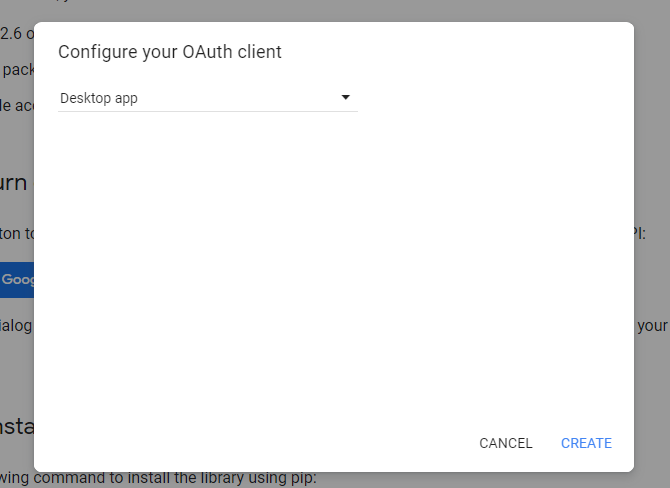
 這邊選Desktop app,:

之後會產生Client ID和Client Secret,按下DOWNLOAD CLIENT CONFIGURATION,會下載credentials.json:

把credentials.json和下面範例的程式碼放在一起,執行就可以:

SAMPLE_SPREADSHEET_ID 就是試算表的後面的ID:
SAMPLE_RANGE_NAME 的 Class Data 是表的名稱,!A2:E是範圍,只有表的名稱就能夠取得整張表。

之後第一次使用會開啟瀏覽器,登入一次後就能使用,需要登入才能檢視的試算表也可以,只要登入的帳號有查看的權限就行。

2020-02-15

Python + Flask 處理 Mattermost incoming/outgoing hook 和 slash command

Incoming Webhooks


在側邊欄找到 Integrations > Incoming Webhooks > Add Incoming Webhook,
填入 Title、Description 並選擇 Channel 後按 save,

就會獲得一串 URL 類似:https://mattermost.your.domain/hooks/xxxxtokenxxxx

最簡單的 Incoming Webhooks 範例:


data 要 json.dumps 沒注意會遇到像下面的錯誤:

{"id":"model.incoming_hook.parse_data.app_error","message":"Unable to parse incoming data","detailed_error":"","request_id":"xxxxxxxxx","status_code":400}

或是 import slackweb:


Outgoing Webhooks


在側邊欄找到 Integrations > Incoming Webhooks > Add Outgoing Webhook,
填入 Title、Description、選擇 Content Type(推薦選擇 application/json)、
Trigger Words(觸發的關鍵詞)、選擇 Trigger When(推薦 First word matches a trigger word exactly)、最後填入Callback URLs 後按 save。

簡單的 Outgoing Webhooks 範例:


執行上面的 code 之後,127.0.0.1:8888 就會出現 'Home Page' 了。
Outgoing Webhook 只要去 post 我們設定的 127.0.0.1:8888/mattermose 就行了。

但 Outgoing Webhooks 需要 public ip,這部分可以用看看 ngrok,裝了 ngrok 之後下command:
ngrok http 8888

就會有的 public URL,像這樣:
Forwarding http://xxxxxx.ngrok.io -> http://localhost:8888
Forwarding https://xxxxxx.ngrok.io -> http://localhost:8888


上面範例中的 Callback URL 填入 xxxxxx.ngrok.io/mattermost 就可以了。

Slash Command


在側邊欄找到 Integrations > Slash Commands > Add Slash Command,
填入 Title、Description、Command Trigger Word、Request URL、Request Method、Response Username、Response Icon(不填就是預設)、可以打勾 Autocomplete(能自動補完 command),最後按 save。

Slash command 有點類似 Outgoing Webhooks,Request URL 就是一樣去 post 我們設定的 127.0.0.1:8888/mattermose:
(下面的 code 同 Outgoing Webhooks)


使用 Slash Command 就是在 Trigger Word 前加 slash: '/yourtriggerword'

這時如果出現錯誤:
command with a trigger of ‘xxxx’ failed
可以試試允許使用 localhost:
側邊欄 > System Console > Developer 在 Allow untrusted internal connections to 中填入 localhost。

但我允許後還是不行,這時一樣可以用 ngrok。

2019-08-25

Mac 上 Python2.X 安裝 mysql-python

用 easy_install mysql-python 或 pip install mysql-python 直接安裝可能遇到像這樣的錯誤:
mysql-python: ERROR: Command "python setup.py egg_info" failed with error code 1
因為系統上要先安裝 mysql 和 mysql-connector-c:

然後直接 pip install 可能還有錯誤:
ld: library not found for -lssl
clang: error: linker command failed with exit code 1 (use -v to see invocation)
error: command 'cc' failed with exit status 1
試試看指定 LDFLAGS 再 pip install:

應該能裝成功。

2019-08-06

Python 查看 import 的一個套件/模組/檔案的路徑

import 一個套件/模組/檔案:
import selenium

直接 print :
print selenium

就能得到路徑:
>>> <module 'selenium' from '/usr/local/lib/python2.7/dist-packages/selenium/__init__.pyc'>

如果是 pip install 來的套件,也可以用__path__方法:
print lxml.__path__

>>> ['/usr/lib/python2.7/dist-packages/lxml']

2017-09-09

Python + Selenium 網頁自動化環境設定

第0步 安裝 Python

首先確定已經安裝了Python。
還沒有安裝的話,可以從Python官網 https://www.python.org 下載。

第1步 安裝 Python 的 selenium 套件

打開 terminal 或 cmd 輸入:

pip install selenium

第2步 下載 webdriver

Selenium 需要 webdriver 來控制瀏覽器。
依照自己使用的瀏覽器,下載適用於該瀏覽器版本的 webdriver。

以下是一些常用瀏覽器的 webdriver:
Google Chrome
https://sites.google.com/chromium.org/driver/
Firefox
https://github.com/mozilla/geckodriver/releases

下載後解壓縮,將 webdriver 放在於任何目錄都行。

第3步 可以開始寫自動化了

以下是一個簡單的範例程式碼,會打開 Google 首頁並搜尋關鍵字:

import time
from selenium import webdriver
from selenium.webdriver.common.by import By
from selenium.webdriver.common.keys import Keys

driver = webdriver.Chrome("/Users/path/to/chromedriver")  # 或使用其他 webdriver,路徑換成 webdriver 的路徑

# 打開網頁
driver.get("https://www.google.com")

# 在搜尋框中輸入關鍵字並送出
search_box = driver.find_element(By.NAME, "q")
search_box.send_keys("Python Selenium")
search_box.send_keys(Keys.ENTER)

# 等待3秒
time.sleep(3)

# 關閉瀏覽器
driver.quit()

如果文章有幫助到你可以在 LikeCoin 上幫我拍手喔